SIM001 › The ground station
Ground control station
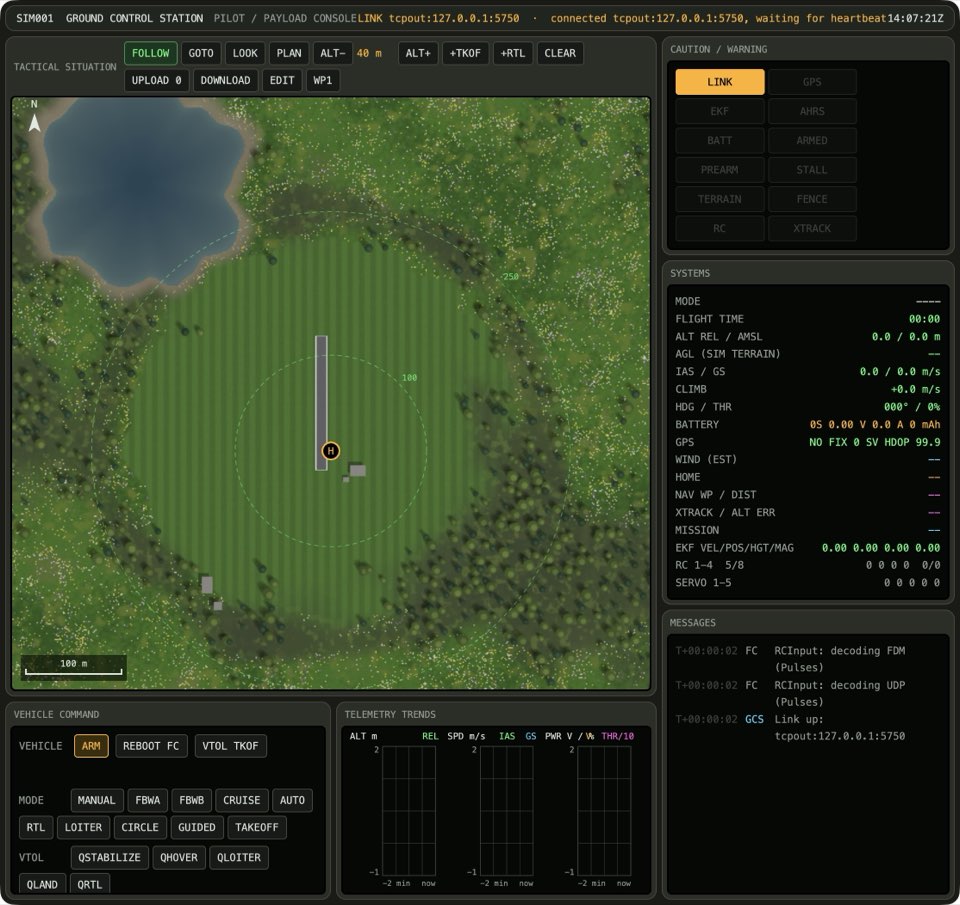
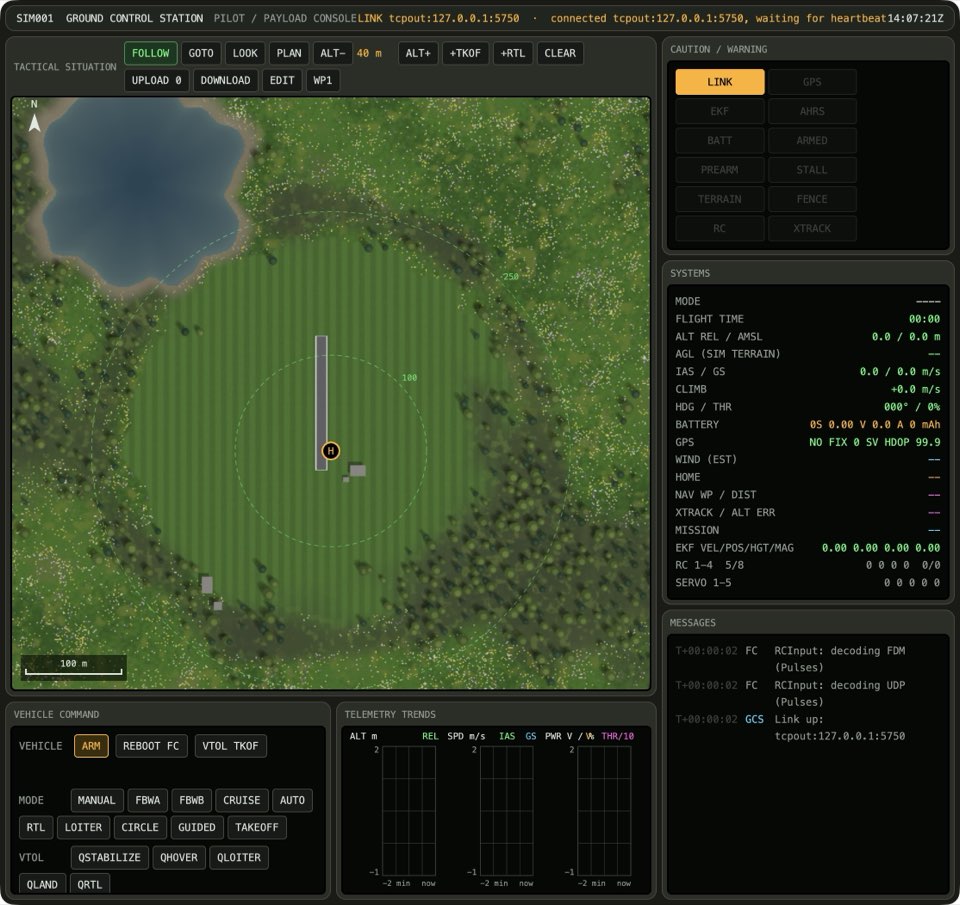
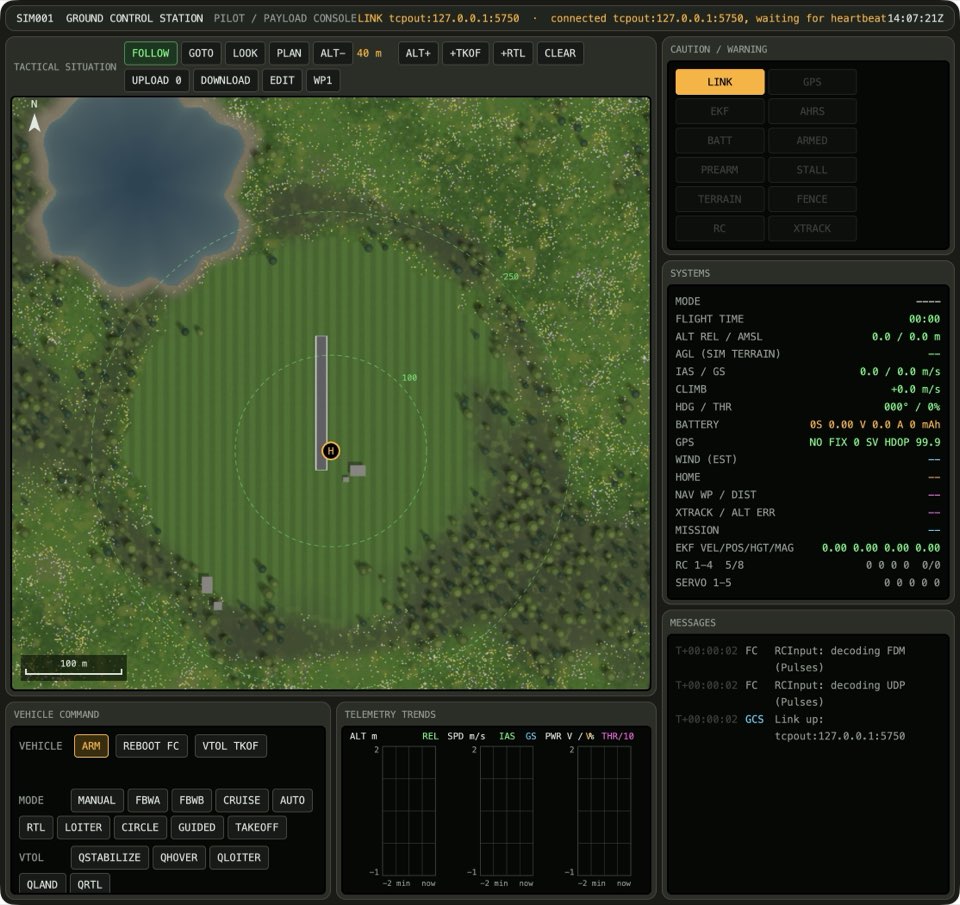
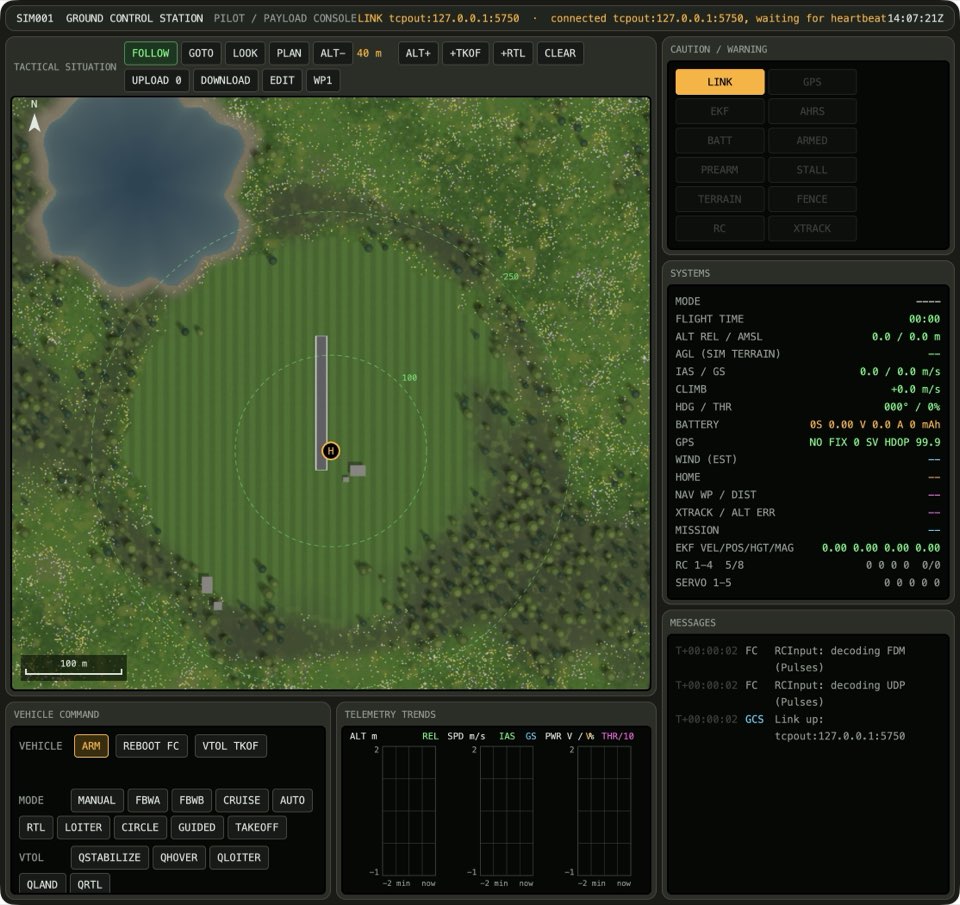
The ground station flies the T1-S VTOL, the default plane of the sim, through ArduPilot. (The plain T1-S Ranger has no flight controller, so it is flown from The simulator.) You plan a mission on a map of the valley, and you write the mission to the plane. Then you arm the plane, and you throw it. The ground station talks to ArduPlane with MAVLink, as Mission Planner and QGroundControl do.
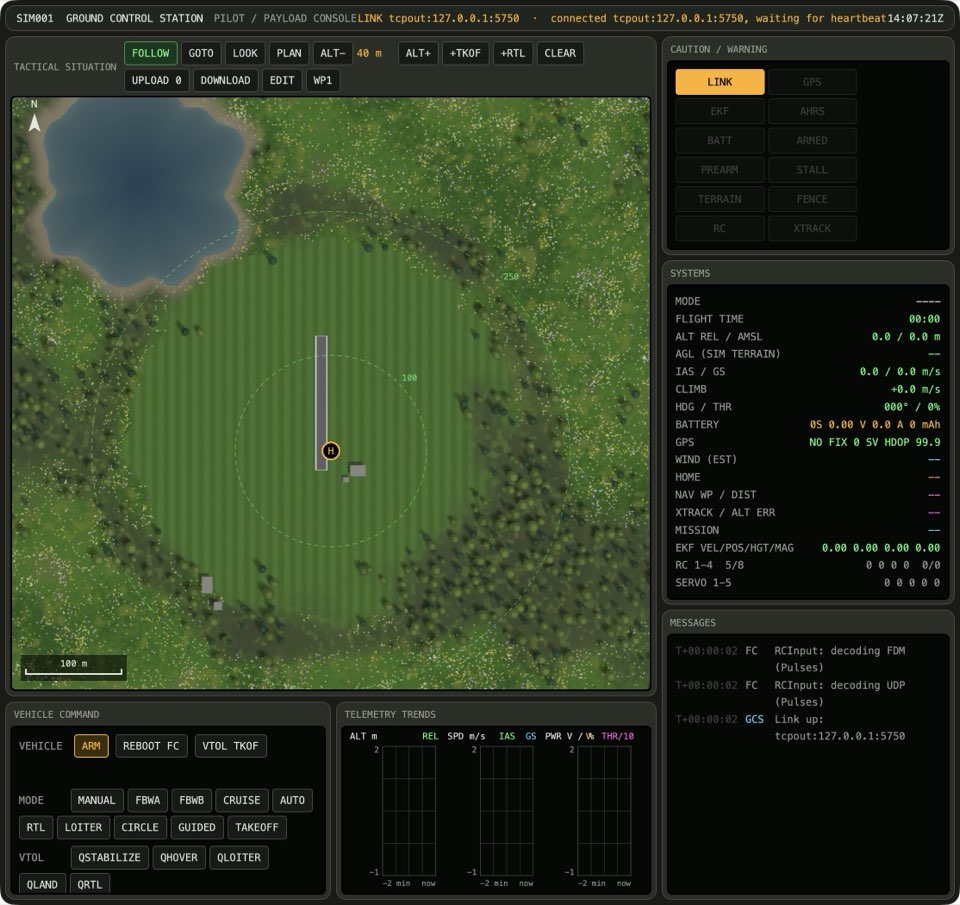
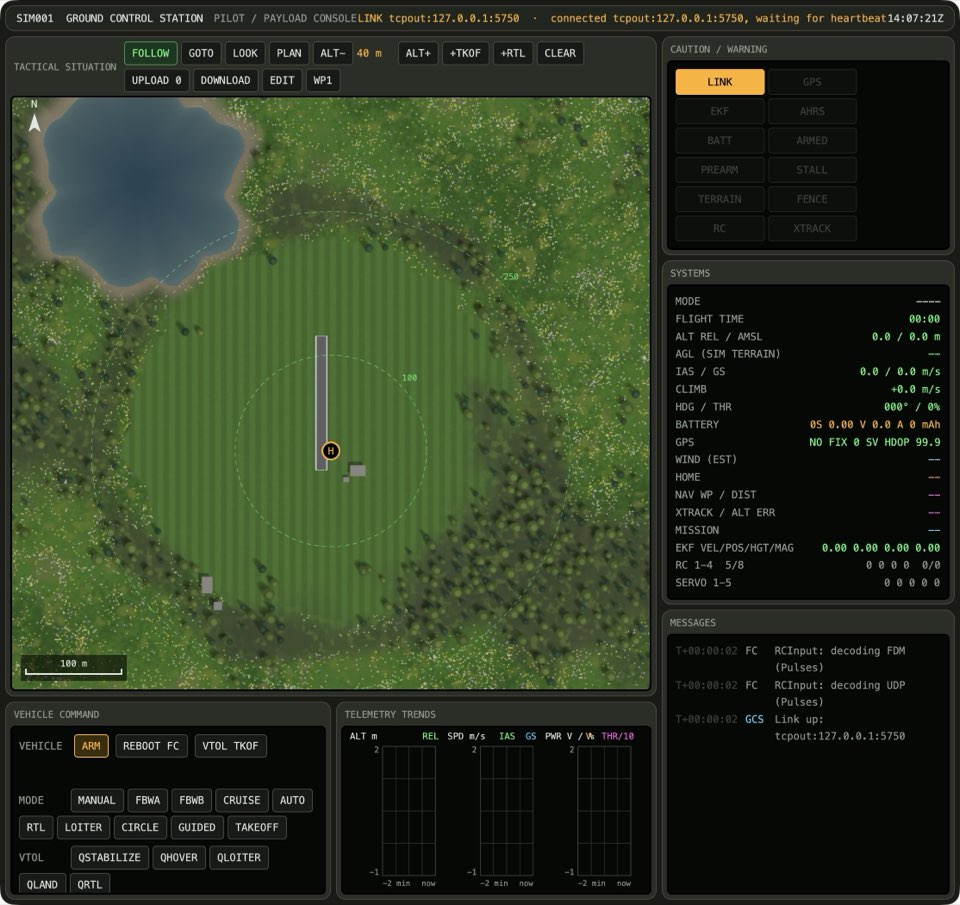
The console is one window with a set of screens. The tactical map (TACTICAL SITUATION) is in the middle. Its buttons are along the top: FOLLOW, GOTO, PLAN, ALT-, the plan altitude, ALT+, +TKOF, +RTL, CLEAR, UPLOAD, DOWNLOAD, EDIT and WP1. The vehicle command screen has ARM, DISARM and a button for each flight mode. Start with From plan to flight.
Tutorials
 Flying a VTOLThis tutorial shows a full VTOL flight. You take off straight up, and the plane hovers over the field. You switch to forward flight, and the plane tilts its wing motors forward and flies on its wing. Then you switch back to a hover, and you land straight down. The plane keeps its height through both transitions.
 Taking off with the TX15This tutorial starts with the station and ends with a landing. The station opens three windows: the console, the sensor feed and the sim. The plane is on the ground at the pilot box. You arm the plane with SE and pick QLOITER with button 2. Push the throttle stick up, and the plane climbs straight up. Put the stick in the middle, and the plane keeps its height. Pull the stick down, and the plane lands.
 Flying a VTOL with self-levellingThis tutorial follows Taking off with the TX15 and uses the same radio. You lift off in QLOITER. Then you press button 3 for FBWA, and the plane flies forward on its wing. In FBWA the plane levels itself, so you bank it with the aileron stick and then let go. At the end you press button 2 to hover again, and you press button 6. The plane flies home and lands softly.
 Trying the buttons of the radioThis tutorial uses the same radio as Taking off with the TX15. You lift off in QLOITER, and then you try the other modes in the air. Button 1 is QHOVER, and the plane drifts with the wind. Button 4 is CRUISE, and the plane flies forward on its wing. Button 6 is QRTL, and the plane flies home and lands softly. Flying a VTOL with self-levelling shows button 3, FBWA.
 From plan to flightThis tutorial shows all the steps of a flight. You plan a short circuit on the map, and you write it to the plane. Then you arm the plane, select AUTO and throw the plane. After the throw, ArduPlane flies the circuit. Planning a mission and Flying a mission give more information about each part.
 Planning a hand-launched circuitA circuit is the simplest useful mission. The plane takes off, flies to some waypoints and comes back. The takeoff waits for your throw. The return brings the plane back to the point where you armed it.
 Fixing a misplaced waypointIt is easy to remove a waypoint that you put in the wrong place. A right-click removes the last item. Then you can click the correct place.Clearing the ridgeThe ridges of the valley are higher than the default plan altitude. Before you put waypoints near the ridges, increase the plan altitude. Then compare the plan with the terrain. The planner raises each waypoint that is too low.Keeping a mission for the fieldSave a plan that you want to use again. If you change the plan after that, load the file to get the saved plan back.Surveying a fieldTo make a map of a field, draw a line around the field. The planner fills the area with survey lines. Then write the plan to the plane, as with all other plans.
 Planning at the altitude limitThe plan altitude cannot go higher than 300 m above home. At 300 m, ALT+ does nothing, if you press it one time or many times.Flying the circuit and coming homeAfter the throw, the plane flies its mission without your help. At each waypoint, the current item on the map moves to the next one. After the last waypoint, the mode changes to RTL.Flying the circuit againWP1 sends the plane back to the first item of its mission. Thus the plane flies the circuit again, and it does not land.Racing the computer pilots from the stationStart a race in the sim. All the planes stand on the field, and nobody can arm before GO. At GO, you and the computer pilots arm, take off and fly to the course.Flying a VTOL with the TX15This tutorial uses the radio as it is on the real plane. The TX15 sends its sticks and switches on a serial line, and the plane answers on the screen of the TX15. You arm the plane with SE, and you pick QLOITER with button 2. Push the throttle stick up, and the plane climbs straight up. Press button 3 for FBWA, and the plane flies forward on its wing and levels itself. Bank it with the aileron stick, and let go. Press button 2 to hover again, and press button 6. The plane flies home and lands softly. At each step, look at the screen of the TX15.
Topics
- Map tools
- When you drag the tactical map, it pans. PLAN and GOTO change what a click on the map does. With PLAN, a click adds a waypoint to the plan. With GOTO, a click sends the plane to that point. Press the same tool again to go back to panning.
- Vehicle commands
- ARM needs a second press to confirm it. For a plane, home is the point where you arm it, and RTL brings the plane back to that point. The mode buttons change the flight mode of ArduPilot. If the vehicle has no mission, AUTO asks you to confirm, because the plane would go to RTL immediately.